> ## Documentation Index
> Fetch the complete documentation index at: https://docs.pezzo.ai/llms.txt
> Use this file to discover all available pages before exploring further.
# Prompt Editor
The Prompt Editor is where you can edit your prompt content and settings.
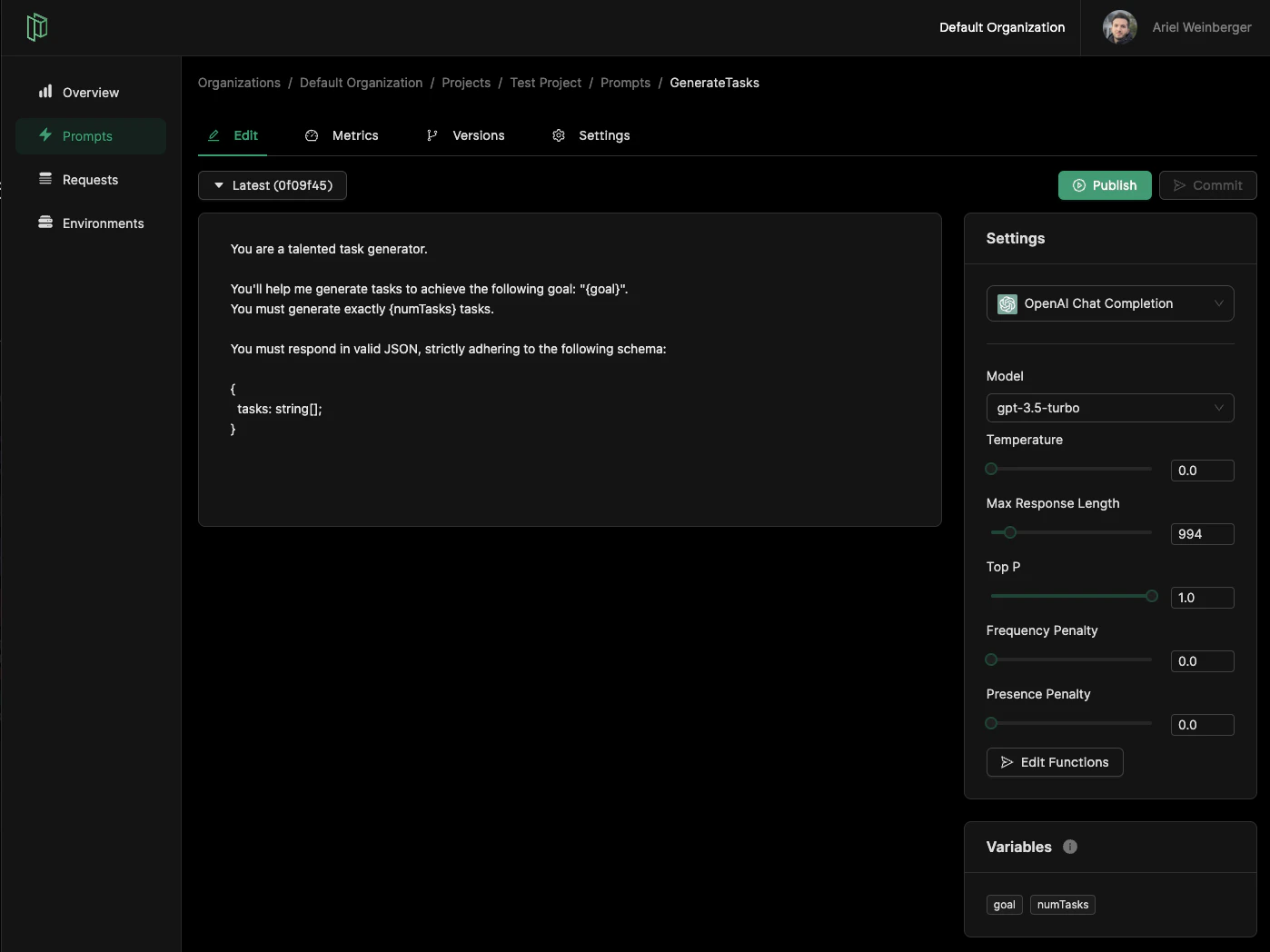
When selecting a prompt from the Prompts page, you will be met with the Prompt view, which contains multiple tabs. The main tab is the **Prompt Editor**.
 ## Prompt Content
On the left-hand side you will find a text area. This is where you can write the content of your prompt.
You can specify variables using curly braces, which allows you to dynamically replace values when calling the LLM provider using the Pezzo Client. For example - `{name}`.
## Prompt Settings
On the right-hand side you will find the settings for your prompt. The first setting is the provider. Currently, Pezzo supports the following:
* OpenAI Chat Completion
* Azure OpenAI Chat Completion (Coming Soon)
* Anthropic (Coming Soon)
After selecting the provider, a set of settings will appear which are specific to that provider. You can tune these settings and commit them in a specific version, so they are automatically fetched by the Pezzo Client.
## Prompt Content
On the left-hand side you will find a text area. This is where you can write the content of your prompt.
You can specify variables using curly braces, which allows you to dynamically replace values when calling the LLM provider using the Pezzo Client. For example - `{name}`.
## Prompt Settings
On the right-hand side you will find the settings for your prompt. The first setting is the provider. Currently, Pezzo supports the following:
* OpenAI Chat Completion
* Azure OpenAI Chat Completion (Coming Soon)
* Anthropic (Coming Soon)
After selecting the provider, a set of settings will appear which are specific to that provider. You can tune these settings and commit them in a specific version, so they are automatically fetched by the Pezzo Client.